Occasionally prospective users will ask us whether we have 24 hour, 7 day a week phone support. The basic answer is no, although sometimes it sure feels like we do. Running a web based, global business, with users spread out across more than 27 countries, we could easily work 24 hours a day and always be talking to someone where it is business hours. The web never sleeps, as they say.
Here is our rational and thinking about why we do not have 24 hour a day phone support, in response to a query from a potential client:
"I understand your desire for phone support over email support, but our business model just doesn't allow for it. Our goal has always been more of the self help model, that is, our users can mostly figure everything out on their own, and we are available for questions, often via email, with phone as a backup for the more involved situations. At our price points, $15 a month for you, we just can't afford the time it takes to have unlimited phone support. While this may cause us to loose a few customers, generally it has been an overwhelming success as our clients understand where we are coming from, and the support we are able to offer, combined with our strong product, and very reasonable prices more than makes up for the lesser phone support. For example, I am able to write you this email at 10:49p, rather than having to schedule a phone call, and take a lot more time to talk on the phone. Email is generally quicker and much more flexible as to when it can be written. Of course for introductory overviews to the system, and more involved questions, we are happy to set up phone calls."
Thank you to our existing and potential clients for your understanding!

News and information about our reservation software. An online web-based solution that works great for bed & breakfasts, property managers, hotels, rental businesses, and lots more.
Thursday, September 27, 2012

Nice Review From a User
Cedar Mountain Farm Bed and Breakfast commented on ReservationKey's status.
Cedar Mountain Farm Bed and Breakfast wrote: "Like the reader you quoted, I looked long and hard for a new reservation system (switching from Webervations). At first I thought Reservation Key was too good to be true. Now I know it is all true and totally awesome. I love being able to see the history on a date--that's helped me know just who cancelled, etc. I love the ease of changing the template for the emails.I love the remarkable, fast, personal customer service. I'm hooked."
Cedar Mountain Farm Bed and Breakfast wrote: "Like the reader you quoted, I looked long and hard for a new reservation system (switching from Webervations). At first I thought Reservation Key was too good to be true. Now I know it is all true and totally awesome. I love being able to see the history on a date--that's helped me know just who cancelled, etc. I love the ease of changing the template for the emails.I love the remarkable, fast, personal customer service. I'm hooked."
Thursday, September 20, 2012
Preference Setting For New Reservation Alert
It is now possible to set how many days the new reservation alert should search. The new default is to show the number of reservations received over the last two days. Some users noted that by only showing an alert for reservations received "today" they were not being alerted to reservations made late the previous night. With two days always showing, this won't be an issue. For manually entered reservations, the user name of who entered the reservation also now shows.

To change the preference back to just one day, or to remove the alert all together, go to Settings Tab, Preferences.

To change the preference back to just one day, or to remove the alert all together, go to Settings Tab, Preferences.
New Features in Activity Tab
We've added a column to show which user was logged in when an activity is recorded. This will make it easier to track which users are making changes in the system.
The other new feature is the ability to export all the activity log information to a CSV file. Whatever is being viewed on the screen is what will export. All records will export, even if only the first 50 are showing on the screen.

The other new feature is the ability to export all the activity log information to a CSV file. Whatever is being viewed on the screen is what will export. All records will export, even if only the first 50 are showing on the screen.
Wednesday, September 19, 2012
More Flexibility Using Themes and Custom Text
An existing property management customer is expanding into the tour business, and is using ReservationKey to manage all his tour bookings. Thanks to being able to set up many different reservation pages in ReservationKey, he can set up a different page for each tour offering.
One such page is for the Rhythms of the Night tour. Using themes, he was able to hide various parts of the page, including the Arrive/Depart info at the top of the summary column.
Here is what it normally looks like:

In Custom Text, he changed the word "Arrive" to "Tour Date" such as is seen here:

We just added two new CSS tags so now display on these two lines can be set individually. By setting "display:none" in #reservationsummary_depart the departure date can be hidden.
#reservationsummary_arrive { }
#reservationsummary_depart {display:none;}
After linking the theme and the custom text set to the Reservation Page, the finished result looks like this:

This is just one nice example of how the system is flexible enough to handle a lot of different reservation needs.
One such page is for the Rhythms of the Night tour. Using themes, he was able to hide various parts of the page, including the Arrive/Depart info at the top of the summary column.
Here is what it normally looks like:
In Custom Text, he changed the word "Arrive" to "Tour Date" such as is seen here:
We just added two new CSS tags so now display on these two lines can be set individually. By setting "display:none" in #reservationsummary_depart the departure date can be hidden.
#reservationsummary_arrive { }
#reservationsummary_depart {display:none;}
After linking the theme and the custom text set to the Reservation Page, the finished result looks like this:
This is just one nice example of how the system is flexible enough to handle a lot of different reservation needs.
Why Switch to ReservationKey?
Just now, a prospective user emailed me with this question:
" I have webervations right now and am considering a change. What can you tell me that would make me think you are better? Thank you."
My short answer to this question is:
I think big reasons are we have a fuller featured system, a very flexible system (it can be set up in many different ways), good customer service, a growing system (we actually work on it every day and build new features very regularly), and a reasonable price.
Our user's are the ones who say this best though, so in my email back I also included some quotes from a user that I was just yesterday discussing this with.
Here is what CS Tomlinson from Rockies Rentals (www.rockiesrentals.ca) has to say:
"Yes - we investigated over 100 reservation systems, and did full trials on quite a few of them. It was a very frustrating process. And now that we have been using RK for 3+ months, we can confidently say that it kick the a$$ of all the other systems. We are so pleased with the functionality and the service. I really could say enough good things about the software. [and you have my permission to use this as a testimonial - or I can write a more detailed version].
As for QuickBooks, I pull a report at the end of each month that shows me all Room & Other Revenue (Items for Sale, Fees, Taxes, Etc) and enter it as one 'invoice' for month end. And then I can look at detailed reports of our Income and Expenses in Quickbooks. That works for our needs.
I can assure you that Webervations is VERY barebones. We did a test of Webervations - it was useless, in my opinion. As a side note, I did the full trial one year ago. I used it for less than 2 hours before classifying it as 'useless'. Homeaway sent me an invoice for the service last week, and then follow up emails demanding payment in full. I used it for 2 hours, one year ago during a Free Trial. I've never received any correspondence from their company in that entire year. Not even a product update. It's a sneaky business tactic in my opinion.
You have nothing to worry about. That user may have saved a couple bucks a month, but she will spend exponentially more in additional Management Time. People often underestimate what their time is worth. And Webervations is now owned by HomeAway - their customer service leaves a lot to be desired. "
" I have webervations right now and am considering a change. What can you tell me that would make me think you are better? Thank you."
My short answer to this question is:
I think big reasons are we have a fuller featured system, a very flexible system (it can be set up in many different ways), good customer service, a growing system (we actually work on it every day and build new features very regularly), and a reasonable price.
Our user's are the ones who say this best though, so in my email back I also included some quotes from a user that I was just yesterday discussing this with.
Here is what CS Tomlinson from Rockies Rentals (www.rockiesrentals.ca) has to say:
"Yes - we investigated over 100 reservation systems, and did full trials on quite a few of them. It was a very frustrating process. And now that we have been using RK for 3+ months, we can confidently say that it kick the a$$ of all the other systems. We are so pleased with the functionality and the service. I really could say enough good things about the software. [and you have my permission to use this as a testimonial - or I can write a more detailed version].
As for QuickBooks, I pull a report at the end of each month that shows me all Room & Other Revenue (Items for Sale, Fees, Taxes, Etc) and enter it as one 'invoice' for month end. And then I can look at detailed reports of our Income and Expenses in Quickbooks. That works for our needs.
I can assure you that Webervations is VERY barebones. We did a test of Webervations - it was useless, in my opinion. As a side note, I did the full trial one year ago. I used it for less than 2 hours before classifying it as 'useless'. Homeaway sent me an invoice for the service last week, and then follow up emails demanding payment in full. I used it for 2 hours, one year ago during a Free Trial. I've never received any correspondence from their company in that entire year. Not even a product update. It's a sneaky business tactic in my opinion.
You have nothing to worry about. That user may have saved a couple bucks a month, but she will spend exponentially more in additional Management Time. People often underestimate what their time is worth. And Webervations is now owned by HomeAway - their customer service leaves a lot to be desired. "
Thursday, September 13, 2012
New Color Coding in Activity Availability Search
When reviewing activity results for Availability Search (entries that get recorded when someone searches for availability on a Reservation Page), if the search results in no units available, a red "No Availability" tag appears next to the activity log. If the search was within your cut-off period, an orange "In Cut-Off" tag appears. Also, groups of searches performed by the same IP address are now color coded into blocks. These enhancements should make it much easier to spot trends in the activity results.
Example:

Example:
Thursday, September 6, 2012
NEW FEATURE: Create Custom Reservation ID Numbers
You can now set which number you want your reservation ID numbers to start from. The numbers are unique to each account, and will only increase as reservations are added to your account. Prior to this, the reservation ID numbers were used system wide and increased sequentially as reservations were added to any user's account. You could use this new feature to reset the numbers each year, or simply to start your own numbering system. Setting up your own ID numbers will not affect previously entered reservations. Those will retain the system ID number.
To set up a custom ID number, go to Settings Tab, Preferences, and scroll down. Example:

Once set, all reservations made through Reservation Pages, internally, or through the mobile site will start with your new sequence.
Example of reservation with custom number:

To set up a custom ID number, go to Settings Tab, Preferences, and scroll down. Example:
Once set, all reservations made through Reservation Pages, internally, or through the mobile site will start with your new sequence.
Example of reservation with custom number:
Tuesday, September 4, 2012
Added Status Column to Payments by Date Report
The Payments by Date report now has a column to show the Reservation Status. It shows the status colors and description, unless the Print link is used, in which case the description only shows.
Example:

Example:
Thursday, August 30, 2012
New Tax Option For VAT Included
For users in countries where tax is included in the price, we now have an option to set the system to include VAT. Taxes are still calculated, but are not shown to the guest. To see the tax information, a template can be created using the tax merge codes, or export the reservation data to an Excel file.
To enable this, change the setting in Settings tab, Preferences:

Once changed, the system will no longer show taxes in the {{resdetails}} codes, or in the Reservation Summary. In the Reservation Summary, taxes can still be shown by clicking Taxes, such as is shown here:

Example of what {{resdetails_ledger}} looks like without the tax information:

Setting up taxes and rates remains the same, except that the rates should now include the tax. We also added a new enhancement to the split tax rules. It is now possible to select whether Part 1 of the split tax should be a straight money amount, or a percentage of the price (such as tax 50% of the total price at 25% and the remaining amount at 8%). Example:

If you are interested in using this feature, and want to help us refine it, feel free to send suggestions.
To enable this, change the setting in Settings tab, Preferences:
Once changed, the system will no longer show taxes in the {{resdetails}} codes, or in the Reservation Summary. In the Reservation Summary, taxes can still be shown by clicking Taxes, such as is shown here:
Example of what {{resdetails_ledger}} looks like without the tax information:
Setting up taxes and rates remains the same, except that the rates should now include the tax. We also added a new enhancement to the split tax rules. It is now possible to select whether Part 1 of the split tax should be a straight money amount, or a percentage of the price (such as tax 50% of the total price at 25% and the remaining amount at 8%). Example:
If you are interested in using this feature, and want to help us refine it, feel free to send suggestions.
Tuesday, August 28, 2012
New Flexibility in Taxes on Items for Sale and Fees
It is now possible to set exactly which taxes (if any) apply to Items for Sale and Fees. Previously, we had just one setting taxable or non-taxable. Now, to set as non-taxable, just don't check any taxes to apply to the item. Otherwise, check the taxes that should apply. This allows for greater flexibility, and is more straightforward when setting up the three areas where taxes may apply (Rate Plans, Items for Sale, and Fees). Each section is the same now; just check which taxes to apply.
Example of selecting which taxes in the Item for Sale settings screen:

When adding an Item for Sale or Fee on the fly to a reservation, it is also possible to select which taxes to apply. Example:

We have converted all the old taxable/non-taxable settings to use this new system. This can be double checked by looking at your Items For Sale settings (under Website tab) and verifying the correct taxes to apply are checked. And the same goes for Fees (under Properties tab).
Example of selecting which taxes in the Item for Sale settings screen:
When adding an Item for Sale or Fee on the fly to a reservation, it is also possible to select which taxes to apply. Example:
We have converted all the old taxable/non-taxable settings to use this new system. This can be double checked by looking at your Items For Sale settings (under Website tab) and verifying the correct taxes to apply are checked. And the same goes for Fees (under Properties tab).
Wednesday, August 22, 2012
Press Enter To Search
A few fields have been updated to have the ability to start a search by pressing enter instead of having to click the search button.
Places you can press enter instead of clicking a search button:
- last name field in the Reservation Summary screen (opens the contact search box)
- last name field in the contact search popup box
- Reservation Manager, Guests tab - the search field
Places you can press enter instead of clicking a search button:
- last name field in the Reservation Summary screen (opens the contact search box)
- last name field in the contact search popup box
- Reservation Manager, Guests tab - the search field
Tuesday, August 21, 2012
New Option to Include Tax on Percentage Items for Sale
Now you can set whether or not an item for sale that is a percentage should calculate the percentage price based on the total reservation price, including or excluding tax. This is useful if you are selling something such as Trip Insurance, that needs to be based on the total price of the entire reservation, including tax.
Section for making this selection:

Section for making this selection:
Monday, August 13, 2012
New Alert If Auto Payment Does Not Complete
We have added an alert in case a PayPal subscription payment is not automatically received. Prior to this, account access would be automatically disabled as soon as the currently paid month expired. The difficulty with this is sometimes users would find themselves unable to log into their ReservationKey account without advance notice. Usually the payment is not received because the credit card used as the PayPal funding source has expired. It is an easy fix by logging into PayPal and updating the credit card, but frustrating because user's accounts would go inactive until the payment issue was corrected.
Now, we have instituted a 15 day grace period in which to correct the payment problem. Once the funding source in PayPal is updated, PayPal will usually try to make the payment again, automatically. In these cases no further action will be needed on the part of the user. If, for some reason the payment does not happen automatically, the new 15 day grace period will give the user enough time to contact Support and sort out the issue.
Here is an example of what the new alert looks like (it will only appear if an account is in the non-payment grace period):

Now, we have instituted a 15 day grace period in which to correct the payment problem. Once the funding source in PayPal is updated, PayPal will usually try to make the payment again, automatically. In these cases no further action will be needed on the part of the user. If, for some reason the payment does not happen automatically, the new 15 day grace period will give the user enough time to contact Support and sort out the issue.
Here is an example of what the new alert looks like (it will only appear if an account is in the non-payment grace period):
Friday, August 10, 2012
Arrive Depart in Calendar Search Mode
We've added lines for Arrive and Depart dates in the summary section when in the Calendar Search Mode (mode where users click calendar to select dates). This addition matches what we already had in the Availability Search Mode. This should help guests be extra clear on the arrive/depart dates they have selected.
Example:

Example:
Thursday, August 9, 2012
New Guestbook Spam Prevention
In order to prevent spam being submitted on the Guestbook comments form, we have added a new section. To successfully submit a comment, a simple numerical question must be answered by selecting the correct answer from a dropdown list. The questions ask for answers to the sum of random numbers. This is our first attempt at solving the spam issue. If the problem continues, we will refine our spam prevention techniques.
Example:

Example:
Tuesday, August 7, 2012
New Internal Messaging System
Welcome to the new internal messaging system. We will be using this system to announce changes and improvements to the system.
Also, a big part of the system is the ability to send communications internally to Support, instead of by email. We hope to transition the majority of our support messages to this system rather than by email. By having everything internal, all support messages are automatically linked to your account, which makes it much easier for us to match questions to accounts. A problem with email is we don't have your user name when you send a message, which makes it more time consuming to find the user account asking the question. Another big benefit of this new system is we will be saving all correspondence which will make it very easy to quickly get up to speed with an account's support history. And the ability to quickly send out announcements to all our users will be very useful in keeping users up to date with changes and improvements.
As the system gets used, we will be refining it and adding more features, one of which will be a search feature.
Thanks for using this new messaging system, and please let us know any suggestions you may have concerning it.
Thanks!
John
Also, a big part of the system is the ability to send communications internally to Support, instead of by email. We hope to transition the majority of our support messages to this system rather than by email. By having everything internal, all support messages are automatically linked to your account, which makes it much easier for us to match questions to accounts. A problem with email is we don't have your user name when you send a message, which makes it more time consuming to find the user account asking the question. Another big benefit of this new system is we will be saving all correspondence which will make it very easy to quickly get up to speed with an account's support history. And the ability to quickly send out announcements to all our users will be very useful in keeping users up to date with changes and improvements.
As the system gets used, we will be refining it and adding more features, one of which will be a search feature.
Thanks for using this new messaging system, and please let us know any suggestions you may have concerning it.
Thanks!
John
Sunday, August 5, 2012
Fees and Items for Sale Line Items
Now, instead of breaking down multiple Fees and Items for Sale into one line per item, they are combined onto one line. If the quantity is more than one, then a number is added after the description, to indicate how many were added. Currently this is only for items added internally. We likely also will change items added through Reservation Pages to display in this format.
Send a Reply to this message if you have any reason why we shouldn't display items like this. Thanks!
Example:

Send a Reply to this message if you have any reason why we shouldn't display items like this. Thanks!
Example:
Saturday, August 4, 2012
How to Create Dropdown Field for Check-in Time
By popular demand, you can now customize the Check-In Time field to leave it as a text field, or make it a dropdown with your own dropdown selection text.
To make a dropdown, go to Website tab, Reservation Pages, edit your page, scroll down to near the bottom, the section called Reservation Form, and click Customize. In the label field for Check-In Time, add your label, in this format:
[label name] dropdown:[value1#value2#value3]
Everything after the word "dropdown:" will be assumed to be the dropdown values, separated by # sign. Everything up to the word "dropdown:" is treated as the label for the field.
Such as:
Check-in Time (11am - 11pm only) dropdown:11am-1pm#1pm-3pm#3pm-5pm#5pm-7pm#7pm-11pm
Here is what the final product looks like:

To make a dropdown, go to Website tab, Reservation Pages, edit your page, scroll down to near the bottom, the section called Reservation Form, and click Customize. In the label field for Check-In Time, add your label, in this format:
[label name] dropdown:[value1#value2#value3]
Everything after the word "dropdown:" will be assumed to be the dropdown values, separated by # sign. Everything up to the word "dropdown:" is treated as the label for the field.
Such as:
Check-in Time (11am - 11pm only) dropdown:11am-1pm#1pm-3pm#3pm-5pm#5pm-7pm#7pm-11pm
Here is what the final product looks like:
Friday, August 3, 2012
New Tax Merge Codes in Templates
Added new codes to email templates - for total amounts paid of each tax category. The format for the new codes is like this:
{{tax(876): Hotel Tax}}
{{tax(877): Sales Tax}}

{{tax(876): Hotel Tax}}
{{tax(877): Sales Tax}}
Thursday, August 2, 2012
New Internal Title Field for Templates
A field for an internal title has been added to the email templates screen. This allows for an internal template name to be used rather than just the template subject. If no template name has been entered, the subject line will be continued to be used to reference the template. The template name is used internally only; guests will not see this name.

Wednesday, August 1, 2012
No More Accidental Deletion of Admin User
Removed "Delete" option from listing of user accounts, for the admin account. This will prevent the admin account from being accidentally deleted.
Example:

Example:
Tuesday, July 31, 2012
Clicking Payments Saves Credit Card Info
Improved: after entering a credit card number in a reservation, you can now click the Payments link and the credit card number will automatically save prior to the Payments box opening. This should help avoid accidentally not charging a guest's credit card by going into the Payments window and clicking "Add Payment" when you actually intended to click "Charge Card." This only applies to users with a CIM credit card processing option (such as Authorize.net).
Monday, July 30, 2012
Re-Designed Print Version of Housekeeping Reports
Improved print version of the housekeeping reports. Now the notes are combined with the name column which makes for more efficient use of space when printing.
The number of adults/children has been abbreviated, next to the name, such as for two adults and one child:
John Smith (2/1)
The number of adults/children has been abbreviated, next to the name, such as for two adults and one child:
John Smith (2/1)
Friday, April 20, 2012
Updates on Features and News
Thanks to suggestions from users, we've added a few new small features to the system. And scroll down to read some news about things we are working on.
Rate Adjustment Shows in Room Listing Price
If your room/unit price is being adjusted downward by a Rate Adjustment, we are now showing the original price, plus the Adjustment name, and then the adjusted price. This is a good way to let your guests know they are getting a discount.
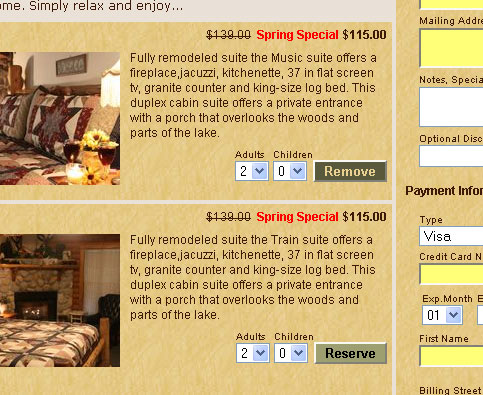
Since Rate Adjustments can also be used to increase prices, we are making sure only to show this section when the price is decreased. We have added ID's to both the original price section and the discount name, so the look and feel of both can be adjusted with CSS in your theme (or hidden if you don't want to use this feature). The tag information is:
#span_originalprice {text-decoration: line-through;}
#span_rateadjustmentname {color:red;font-weight:bold;}
Select Days of the Week For Discount Codes
You can now select which days of the week a discount code can be used. This makes it now possible to use discount codes to run specials such as "Stay 2 nights or more during the week and receive a $100 discount." By setting the code validity to only Sunday through Thursday, the user will see an error message if they try to use the code on other days of the week. If no days of the week are selected, then the discount code is valid for all days.

Email From Address is User Address
For the past year or so emails sent from our system have had a From address of digital-no-replay@reservationkey.com and the Reply-To address was the user's address. We recently switched this back to having the From address being the user's address. This makes the emails look like they came from our user rather than from ReservationKey. We also removed the message at the bottom about replying to emails. We are hoping this doesn't cause too much of an increase in our emails being blocked by spam filters. If it looks like lots of messages are being blocked we might have to switch back, but for now we are trying it this way again. We made some additional changes to the email system which we hope should help our messages get past spam filters.
News
We recently completed a new integration with the credit card processing company 1stPayment. We hope this will give our users another good option when it comes to deciding which credit card processing company to use. And we are still working on an integration with Heartland Payment Systems, which we hope to have completed fairly soon. Once this is done we will have more information about the various credit card processing companies we support.
Some users have expressed interest in GDS capability, and the ability to show availability on sites such as hotels.com, kayak.com, and expedia.com. We have just begun the process of looking for a company to work with to make this happen. One good possibility we may use is the system at siteminder.com.
Another feature high on our list is to create a version of our Reservation Pages that works well on mobile sites. We plan to do this by rearranging the main sections of our existing Reservation Pages so that everything is in a vertical column (instead of two columns as we currently have). Because our system was designed to be modular, this should be a fairly easy and quick task to complete. We hope to start on this within the next few weeks.
Rate Adjustment Shows in Room Listing Price
If your room/unit price is being adjusted downward by a Rate Adjustment, we are now showing the original price, plus the Adjustment name, and then the adjusted price. This is a good way to let your guests know they are getting a discount.
Since Rate Adjustments can also be used to increase prices, we are making sure only to show this section when the price is decreased. We have added ID's to both the original price section and the discount name, so the look and feel of both can be adjusted with CSS in your theme (or hidden if you don't want to use this feature). The tag information is:
#span_originalprice {text-decoration: line-through;}
#span_rateadjustmentname {color:red;font-weight:bold;}
Select Days of the Week For Discount Codes
You can now select which days of the week a discount code can be used. This makes it now possible to use discount codes to run specials such as "Stay 2 nights or more during the week and receive a $100 discount." By setting the code validity to only Sunday through Thursday, the user will see an error message if they try to use the code on other days of the week. If no days of the week are selected, then the discount code is valid for all days.
Email From Address is User Address
For the past year or so emails sent from our system have had a From address of digital-no-replay@reservationkey.com and the Reply-To address was the user's address. We recently switched this back to having the From address being the user's address. This makes the emails look like they came from our user rather than from ReservationKey. We also removed the message at the bottom about replying to emails. We are hoping this doesn't cause too much of an increase in our emails being blocked by spam filters. If it looks like lots of messages are being blocked we might have to switch back, but for now we are trying it this way again. We made some additional changes to the email system which we hope should help our messages get past spam filters.
News
We recently completed a new integration with the credit card processing company 1stPayment. We hope this will give our users another good option when it comes to deciding which credit card processing company to use. And we are still working on an integration with Heartland Payment Systems, which we hope to have completed fairly soon. Once this is done we will have more information about the various credit card processing companies we support.
Some users have expressed interest in GDS capability, and the ability to show availability on sites such as hotels.com, kayak.com, and expedia.com. We have just begun the process of looking for a company to work with to make this happen. One good possibility we may use is the system at siteminder.com.
Another feature high on our list is to create a version of our Reservation Pages that works well on mobile sites. We plan to do this by rearranging the main sections of our existing Reservation Pages so that everything is in a vertical column (instead of two columns as we currently have). Because our system was designed to be modular, this should be a fairly easy and quick task to complete. We hope to start on this within the next few weeks.
Saturday, April 14, 2012
Tips on Authorize.net Integration
Using Authorize.net as your payment processor with ReservationKey is easy. Here are a few tips to help with some of the settings in both systems.
Turn Test Mode Off
Even though you might be tempted to leave Test Mode enabled, disable it. When your authorize.net account is in Test Mode it will not work with ReservationKey. You can always test the connecting by running transactions that are for just a few cents. For testing online reservation payments, do this by temporarily changing your Payment Schedule to require just a $0.02 deposit at the time of reservation. For testing internal payments, you can just type a small amount into the payment field before clicking Charge Card.
To turn Test Mode off, click the link in the red bar, Test Mode.

Then click the button, Turn Test OFF.

To Use CIM or Not To Use CIM?
If you want to be able to charge cards within ReservationKey with the click of a button, CIM must be enabled in your Authorize.net account AND in your Payment Method setup in ReservationKey. If you only need to automatically charge your guest a deposit at time of reservation, you do not need to use CIM. We will store the last four digits of the credit card number and email you the remaining digits. You then can combine those pieces to use charge the card using your existing equipment, just like the Offline Credit Card method works. If you do a lot of transactions, we highly recommend using CIM, since it will make your life much easier since all you have to do is click a button to submit a charge. The downside is that Authorize.net charges an extra $20 per month for this service.
To turn CIM on, go to the Account Tab, and click Merchant Profile on the left side. Then click Sign Up on the line for Customer Information Manager.

You will need to agree to some Terms and then click the button I Agree.

Locate Your Login ID and Transaction Key
You will need the API Login ID and Transaction Key in order to link Authorize.net with ReservationKey. Once logged into Authorize.net, click on the Account Tab at the top, and then select API Login ID and Transaction Key.

Then note your Login ID, and enter the answer to your Secret Question in order to generate a new Transaction Key.

Add Payment Method in ReservationKey
Now, go to ReservationKey, under the Website Tab, select Payment Methods. Click Add Payment Method, then select Authorize.net as the type to add and click Continue. Now, copy and paste your API Login ID and Transaction Key into the fields on the Payment Method screen.

Show for Internal Reservations - whether to show credit card fields in the Reservation Summary, inside ReservationKey.
Use Authorize.net CIM - whether to use CIM. Set this to Yes, ONLY if you have enabled it in your Authorize.net account (see above notes on that).
Show Country Field - whether to ask user to also select their country. If you guests from outside the United States we recommend that you set this to Yes, so that the address verification system works properly.
Link Authorize.net to Your Reservation Page(s)
The final step is to select Authorize.net as your payment method for the Reservation Page(s) where you want to charge cards using Authorize.net. Under the Website tab, select Reservation Pages, and edit the page(s) where you want to use Authorize.net. Scroll down a bit and find the section for Online Payments and select the Authorize.net method you just added.

Save changes, and now your page is linked with Authorize.net. We recommend that you run a few small transactions both on your public Reservation Page and internally (if using CIM) to make sure that everything is working properly.
Turn Test Mode Off
Even though you might be tempted to leave Test Mode enabled, disable it. When your authorize.net account is in Test Mode it will not work with ReservationKey. You can always test the connecting by running transactions that are for just a few cents. For testing online reservation payments, do this by temporarily changing your Payment Schedule to require just a $0.02 deposit at the time of reservation. For testing internal payments, you can just type a small amount into the payment field before clicking Charge Card.
To turn Test Mode off, click the link in the red bar, Test Mode.
Then click the button, Turn Test OFF.

To Use CIM or Not To Use CIM?
If you want to be able to charge cards within ReservationKey with the click of a button, CIM must be enabled in your Authorize.net account AND in your Payment Method setup in ReservationKey. If you only need to automatically charge your guest a deposit at time of reservation, you do not need to use CIM. We will store the last four digits of the credit card number and email you the remaining digits. You then can combine those pieces to use charge the card using your existing equipment, just like the Offline Credit Card method works. If you do a lot of transactions, we highly recommend using CIM, since it will make your life much easier since all you have to do is click a button to submit a charge. The downside is that Authorize.net charges an extra $20 per month for this service.
To turn CIM on, go to the Account Tab, and click Merchant Profile on the left side. Then click Sign Up on the line for Customer Information Manager.

You will need to agree to some Terms and then click the button I Agree.

Locate Your Login ID and Transaction Key
You will need the API Login ID and Transaction Key in order to link Authorize.net with ReservationKey. Once logged into Authorize.net, click on the Account Tab at the top, and then select API Login ID and Transaction Key.

Then note your Login ID, and enter the answer to your Secret Question in order to generate a new Transaction Key.

Add Payment Method in ReservationKey
Now, go to ReservationKey, under the Website Tab, select Payment Methods. Click Add Payment Method, then select Authorize.net as the type to add and click Continue. Now, copy and paste your API Login ID and Transaction Key into the fields on the Payment Method screen.
Show for Internal Reservations - whether to show credit card fields in the Reservation Summary, inside ReservationKey.
Use Authorize.net CIM - whether to use CIM. Set this to Yes, ONLY if you have enabled it in your Authorize.net account (see above notes on that).
Show Country Field - whether to ask user to also select their country. If you guests from outside the United States we recommend that you set this to Yes, so that the address verification system works properly.
Link Authorize.net to Your Reservation Page(s)
The final step is to select Authorize.net as your payment method for the Reservation Page(s) where you want to charge cards using Authorize.net. Under the Website tab, select Reservation Pages, and edit the page(s) where you want to use Authorize.net. Scroll down a bit and find the section for Online Payments and select the Authorize.net method you just added.
Save changes, and now your page is linked with Authorize.net. We recommend that you run a few small transactions both on your public Reservation Page and internally (if using CIM) to make sure that everything is working properly.
Wednesday, April 11, 2012
New Yearly Comparison Report
For users that have been on ReservationKey for several years, now there is a report that makes it easy to compare one year to another. At the bottom of the reports list, select Booking Date Comparison. The report shows you how many bookings you have for the future, as of a certain month, based on the date on which the reservation was made.
The report will show you bookings by month for the period of one year, comparing the two years you select. You can find out something like "As of May 2012, I already have 643 room nights booked for February 2013. As of May 2011, I had only 569 room nights booked for February 2012, so it looks like my sales are running much stronger this year for February 2013 than they were last year."

For example, you can look up statistics such as "As of April this year, how many reservations do I have coming up, compared to how many I had coming up as of April last year?" With this you can easily see if how your bookings for this year compare to last year at the same time, for example. You can also compare years that are both in the past, such as "How many bookings did I have as of January 2011 compared to January 2010?"

The top part of the report shows you the numerical data as a side by side comparison of the two years selected.
The report will show you bookings by month for the period of one year, comparing the two years you select. You can find out something like "As of May 2012, I already have 643 room nights booked for February 2013. As of May 2011, I had only 569 room nights booked for February 2012, so it looks like my sales are running much stronger this year for February 2013 than they were last year."

For example, you can look up statistics such as "As of April this year, how many reservations do I have coming up, compared to how many I had coming up as of April last year?" With this you can easily see if how your bookings for this year compare to last year at the same time, for example. You can also compare years that are both in the past, such as "How many bookings did I have as of January 2011 compared to January 2010?"

The top part of the report shows you the numerical data as a side by side comparison of the two years selected.
Sunday, April 8, 2012
More Ways to Find Reservations
Two new features make it easier than ever to find reservations. In header section, in the upper right, we now have a link for quickly pulling up new reservations, and on the upper left, a link for searching for reservations.
Reviewing New Reservations
As you enter reservations manually, or new online reservations come in, the link will update to show how many new you have for the current day. If you have at least one new reservation, the link will show in bold yellow. If you don't yet have any new reservations for the current day, the link will show "0 New" in white.

Clicking on the link defaults to bring up your new reservations for the day, but you also can search for new reservations from the last 7 days, 14 days, this month, and last month. From the list of reservations you can either click to go to the full reservation information, or click the Quick View option.

Searching Reservations
Clicking the Search link brings up a search box. In this one box, you can search by reservation ID, any of the guest name fields, any of the other contact fields, and also the reservation and contact notes.

The results of your search appear in a new box, where you can run another search, or click on a reservation to go to the full reservation details.

Reviewing New Reservations
As you enter reservations manually, or new online reservations come in, the link will update to show how many new you have for the current day. If you have at least one new reservation, the link will show in bold yellow. If you don't yet have any new reservations for the current day, the link will show "0 New" in white.
Clicking on the link defaults to bring up your new reservations for the day, but you also can search for new reservations from the last 7 days, 14 days, this month, and last month. From the list of reservations you can either click to go to the full reservation information, or click the Quick View option.
Searching Reservations
Clicking the Search link brings up a search box. In this one box, you can search by reservation ID, any of the guest name fields, any of the other contact fields, and also the reservation and contact notes.
The results of your search appear in a new box, where you can run another search, or click on a reservation to go to the full reservation details.
Two New Income Reports
We now have two new reports for quickly seeing how much income you have generated. One is useful for seeing income by month, over the span of a year, and the other report shows income by unit.
Here is the current listing of all the reports we currently offer, with the new reports noted:


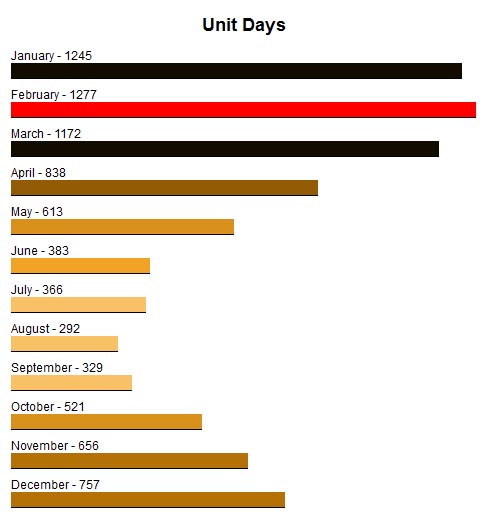
Below the numerical data, we have included three bar graphs, Room/Unit Charges, Payments, and Unit Days. These give you a quick graphical representation of how your income is spread throughout the year.
Here is the current listing of all the reports we currently offer, with the new reports noted:
Income (Summarized by Unit)
You can select the date range to search, and which units to show. The report shows number of nights booked in this period, the occupancy rate, average room rate, and total room charge.

At the bottom of the report, you can easily see totals and averages. Below the numerical information, we also create bar graphs for room charges, and for number of occupied nights.

Income By Month
This report summarizes your income by month, for the period of an entire year. You can select which year from the dropdown, which is populated with the years since you first joined ReservationKey. The left side of the report (units per day, unit days, average charge, total charge) is based on room charges for for each day of the month searched. The right side of the report, is not exact to the month, since some reservations may span multiple months. We are using the checkin date to calculate which month these items show in. While it may not be completely exact, it should be close enough to give you a good idea of your financial situation.

Below the numerical data, we have included three bar graphs, Room/Unit Charges, Payments, and Unit Days. These give you a quick graphical representation of how your income is spread throughout the year.
Subscribe to:
Posts (Atom)