Wednesday, July 9, 2014

NEW: Automatically track commissions due from myallocator.com bookings

If you are using our channel manager connection, myallocator.com, it is now possible to track commissions owed on reservations that come into ReservationKey through the channel manager. We've created a place in the channel manager setting to save how much commission is paid on each reservation you receive through third parties (OTAs). Once this is set, we automatically calculate and store in the expenses section of each reservation the commission amount. This makes it possible to run our existing expense reports and see totals by vendor, by date, etc. Since each OTA is listed as a separate vendor, this is also a great way to track how many reservatoins are coming in from each of the channels you market on.

Step by step instructions:

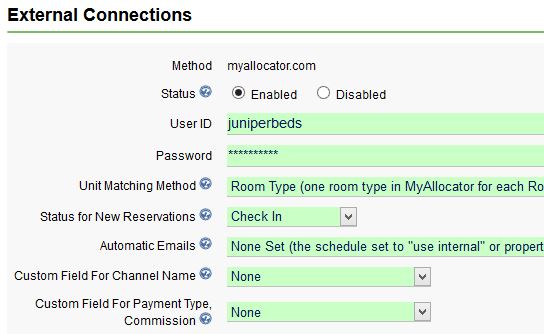
1. Settings Tab, External Connections, Edit
2.. Enter the amount you pay as commission on each reservation. Click Save.

.

3. Now you will see a commission entry in the expense section:


4. And also in the Vendor reports. For example:


If you haven't yet started working with Online Travel Agents (OTAs such as booking.com), you may want to consider it. We've only been hearing good tings about it. Recently one of our users emailed me this information about how it has helped his business.

"I am setting up the Bard's Inn on booking.com now. Airb&b finally is now syncing with myallocator so I do not need to do it manually. I have taken $1800 in AirB&B reservations since I set it up at the start of the year. That is not huge but still was a pleasant surprise because as i get more good reviews, I get more reservations.

The first 6 months of 2013 I had 355 room nights.
The first 6 months of 2014 I had 497 room nights which is 147 nights more directly linked to myallocator. That is a 41% increase."

So, if you haven't yet signed up with myallocator, we strongly encourage to you consider it. Set up the connection in ReservationKey under Settings, External Connections. ..

Thursday, May 15, 2014

Drag Across Dates to Select Multiple Days

We added an enhancement to make it easier to select dates on the internal calendar. Now, instead of clicking each day one by one, we have the option to click the first date, hold down your mouse, and then release on the last date of the reservation. This will select all dates in between, as seen here:


It is also possible to select two units at a time this way. The unit where you start the click will be selected, as well as the unit where the mouse is released, such as seen here:

Monday, May 12, 2014

Innrewards.com - new directory site created by ReservationKey users

Several of our long time users have been working hard to create a new directory website for independent lodging facilities, innrewards.com. The idea with this is to provide a central place for guests to find properties and avoid paying commissions to the big Online Travel Agent sites. ReservationKey has worked with innrewards.com to provide a way for availability in our system to update their website. This means that their website pulls availability directly from ReservationKey for their users that also use ReservationKey.

It is free to list on innrewards.com, so why not take advantage of this extra advertising opportunity? To get started just register for an account on innrewards. Then, to make the connection between ReservationKey and Innrewards, just go to the Settings Tab, External Connections. To start with we are using the same connection as we build for TripAdvisor, so add the connection for TripAdvisor. In the future we likely will build a dedicated Innrewards setup area, but for now this was the quicker way of being able to roll this out.

Once this is completed you should be able to start seeing your property's real time availability start showing up on innrewards.com .

Wednesday, May 7, 2014

Review of Forum Updates

We've been working hard to make the forum more functional, especially to help with organizing and prioritizing requests that we receive. We now are sorting all messages into one of three categories - Technical Support, Feature Request, and Bug Reports. And from there we are connecting the post with the area of ReservationKey it is related to. Already this has been extremely helpful in allowing us to have a better idea of which parts of the program are the source of the most questions, which in turn helps us to determines where we can best spend our resources improving the system.

This also should help our users since now it is much easier to find prior forum posts related to the section of the system one may have a question about. In fact, as part of the process of posting a new post we show a list of prior related posts. We hope that if the issue was previously discussed, the person that currently has a similar question may find immediate assistance, without having to post a new question and wait for a response.


Also, it is easy to find posts related to a section by using the new "By Section" search option:


Or, simply click any tag to retrieve a list of all matching posts. The status is also clickable, which makes it easy to review completed projects, in progress, etc.


A completely new section of the forum is the Statistics area. This is useful for seeing which parts of the system have the most number of posts, and how many posts are made per day, per month, etc. Here we can quickly spot trends in the use of the forum (such as Thursdays seem to be the busiest day), and which section of the system generates the most posts (for Technical Support, Reservation pages in the most recent 30 days). We can see overall statistics or broken down by type of post.


This new organization is already helping us to be much more efficient in answer questions, and to be better organized in keeping track of feature requests and bug reports. We hope you find these features as useful as we do.

Friday, April 18, 2014

Update Themes

We've update our "Simple" themes to reflect trends in modern web design. Most noticeable are some brighter colors, larger text, and larger form fields. But we've also added responsive design into these themes, meaning that the page formatting automatically adjusts to fit the user's screen, no matter what size. This means it isn't critical to have a separate theme for mobile devices and web. Instead it is possible to just use one self-adjusting theme that can work across all devices.

These themes are:

Simple 2014
Simple, Reversed 2014
Simple, Narrow 2014

In full screen (such as on a desktop browser) the system shows two columns side by side.


On narrower screens, such as a phone, the system becomes one column. Images automatically resize to be narrowed, as necessary.

Saturday, March 22, 2014

New MyAllocator Option for Room Type Matching

For users that are taking advantage of our connection with our channel manager partner, myallocator.com, we now have two ways to set up matching between ReservationKey and Myallocator.

By Room Type
We've just added the option to match room types in ReservationKey to those set up in Myallocator. With this method you don't need to set up one room in Myallocator for every room you have listed in ReservationKey. Instead, just set up your room types to match between the two systems. This makes it much faster to set up for larger properties, or those that have many units of similar types. Reservations made through your channels will be placed into the next available room of the type selected by the guest.

One to One (Room to Room)
The is the original way. Set up one room type in Myallocator for every room you have in ReservationKey. And in Myallocator set the number available for each type to be one. Allows for more specific control of which rooms reservations are placed into.


To set up matching by room type, go to Settings Tab, External Connections, Edit Myallocator settings. And select Unit Matching Method of Room Type.


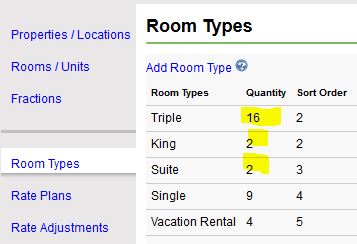
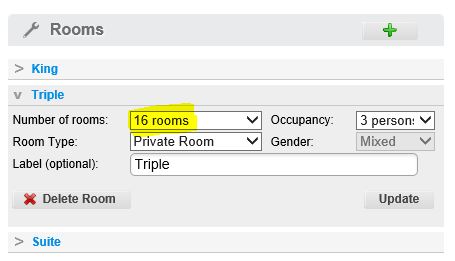
You should have already set up Room Types in ReservationKey and matched them to all your rooms/units.


And you should have done the same in Myallocator.


The quantity of types in both systems should match.

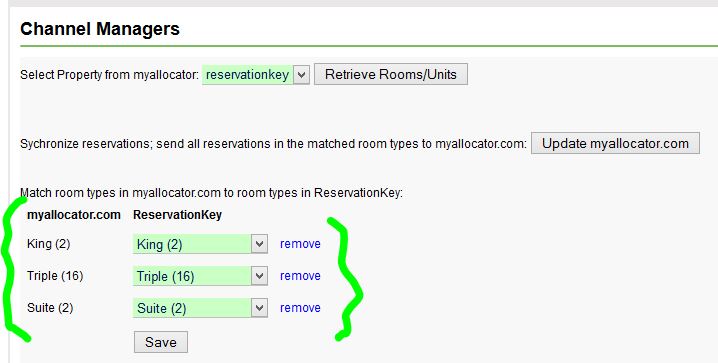
Do the actual matching by going to Edit Room/Unit settings in the External Connections section.


Once you have saved your matched room you can click the button "Update myallocator.com" in order to send a full sync to their system.

Now, whenever a reservation is created in ReservationKey, or through one of your OTA (Online Travel Agent) channels that is connected to Myallocator, all systems will stay in sync.

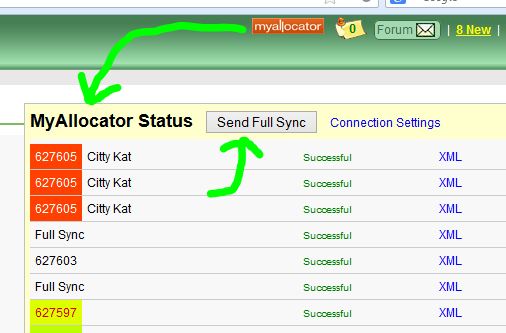
We have also made it easier to send a full sync whenever you want, by including this option in our Myallocator status window.


With matching by room type we send full syncs more often. For example, whenever reservations are deleted we send a full sync. You can monitor what is being sent by checking the status window (by clicking the Myallocator logo as seen in the above screenshot).

We hope this will make it even easier for our users to add channel management functionality to their accounts. Of course, we welcome feedback about this new method.

Thursday, February 27, 2014

MyAllocator Modifications

We've now added the ability to process modifications to existing reservations sent to ReservationKey from MyAllocator.

How this works is we set the prior version of the reservation to cancelled and then insert the modification as if we were inserting a new reservation. If the ReservationKey account doesn't contain a status that doesn't block the calendar (such as cancelled) the system will create one. We considered just deleting the old reservation but that didn't seem like a good idea since it may have been possible that some custom notes or other information were added to the reservation that shouldn't be deleted. We also considered just changing the rooms/units associated with the original reservation, but that also seemed difficult since we wouldn't always know what to change, and there wouldn't be a good record of the differences between the modifications.

In order to make this work we are now saving the version number with the reservation as it comes in from MyAllocator (this isn't visible to the end user). If the same version and MyAllocator ID already exists in ReservationKey we don't do anything (in order to avoid entering duplicate reservations, in case the reservation gets posted to our system multiple times for any reason). If the data being submitted is a different version than what already exists in ReservatoinKey, we change the existing version(s) to cancelled and then insert the new version as if it were a new reservation. If for any reason the new reservation dates are already blocked in ReservationKey the system will email the ReservationKey user a warning that the reservation was unable to be entered.

So, here is how it would look.

1. Original reservation.


2. First modification moves the date one day; original reservation cancelled (shows as a 1) and new reservation is entered.


3. Second modification changes the reservation from one day to two days.


This should help keep things in much better sync with regard to modifications. We suggest that you carefully monitor your incoming reservations from MyAllocator and check ReservationKey, at least for awhile, so you can verify that everything is working as expected.

Thanks to all our MyAllocator users for your help with our continued development with this functionality between ReservationKey and MyAllocator.

Tuesday, February 4, 2014

Time Zone Setting for Public Reservation Pages

As we continue to acquire users worldwide, we have had a lot of requests for the ability to set the time zone used on public Reservation Pages.

It is now possible to set the time zone to be used by each of your Reservation Pages. This setting affects things such as which day counts as the "current date" (used in calculation of reservation cut off dates), payment dates, booking dates, and default calendar date setting. By default, all pages have been set to GMT -5 (Eastern Standard Time in the USA). To set your page to use the time zone in your location, just go to Website Tab, Reservation Pages, edit, and look for the Time Zone setting section.

Friday, November 22, 2013

Enhancement: Reservations Tab Saves Search Settings

Recently a few users posted requests that that Reservations Tab save their search criteria. This would make it easier to do a search for a group of reservations, open one, and then be able to click Reservations again and go back to exactly the same search results.

We've just added this capability to the Reservations Tab. Now, all of the fields should save for when you return to the Reservations Tab. This includes all the options under the Advanced Search settings, plus From/To Dates, Date Type, and Search terms.


Click on the reservation to view it, and then whenever you click Reservations again, your search will be saved.


Also, a new feature in Reservations is the ability to hide reservations that have been set to a status which doesn't block the calendar (such as Cancelled). Click Show Advanced Search to see this option.

Wednesday, November 20, 2013

TripAdvisor TripConnect Certification Complete

We are pleased to announce that ReservationKey has been certified by TripAdvisor as a Plus Partner. Here is the message we recently received from TripAdvisor:

"Great news, everything runs fine and you are now certified and your customers will be able to use the TripConnect within 48 hours."

This means that any of our clients that also have listings on TripAdvisor will have the option to have guests click directly to their booking page on ReservationKey, potential avoiding having to pay commissions that might result if the guest clicks through to one of the big Online Travel Agents (OTA) that the property is also listed on.

While working with TripAdvisor in the certification process there were a few things we had to change from how we originally envisioned this connection would work. Instead of being able to send guests to the hotel's website, we have to send them directly to a ReservationKey booking page, with the dates they guest searched in TripAdvisor pre-filled when they open the ReservationKey booking page. This actually creates some interesting options, since ReservationKey users could set up a booking page specifically tailored to TripAdvisor visitors. Or you can just direct TripAdvisor traffic to your primary Reservation Page in ReservationKey.

Also, since we have to show availability to TripAdvisor which matches that on the Reservation Page that TripAdvisor traffic will be sent to, it isn't necessary for users to select which units to make available to TripAdvisor. The inventory being set to TripAdvisor will be those units which are selected to show on the Reservation Page that is being used with our TripConnect link.

For our users that want to use this TripAdvisor connection, we recommend that you go to the Settings Tab, External Connections and add TripAdvisor. If you already did this, please double check your settings there, and make sure your correct ReservationKey ReservationPage is selected.


Note: If you want to add multiple properties to TripConnect in ReservationKey, this is no problem, but each property must have its own Booking Page. TripAdvisor does not allow multiple properties to all point to the same booking page.

We look forward to feedback from users about how well this works, how many reservations they are receiving, etc. If there seems to be strong demand for this, in the future we may also work on integrating with TripAdvisor's Review Express API.

Advice on Vacation Rental Email Correspondence

ReservationKey is proud to have Matt ofhttp://www.vacationrentalmarketingblog.com fame as one of our long time users. Matt does a great job with his blog of helping vacation rental owners market their properties with many creative methods and common sense advice.

The 14 Do's and Don'ts of Vacation Rental Email Correspondence

Because many vacation rental owners and managers are new to hospitality, I have noticed that it can be easy for us to overlook the tenants of hospitable and professional email correspondence.

While many of these do's and don'ts may very well fall into the larger category of "good email etiquette," I wanted to outline some of the most influential habits that I'm seeing in vacation rental emails.

Embrace the good, break the bad, and get the absolute MOST out of your hard-earned inquiries.

Do's

Write in short sentences: If you've ever noticed in my newsletter emails, short sentences are always more engaging than long, wordy paragraphs. Mark Twain once said, "if I had more time, I'd have written a shorter letter," which is to say, be thoughtful with your words and consolidate them to as few as are necessary.

Proper spacing: Hand in hand with short sentences, remember to use spaces in-between your words. A poorly written vacation rental email looks cramped and messily thrown together, whereas an effective one is simple, short, and well-spaced.

Season's greetings: Always remember to start your email with a kind greetings of "Hello" or "Hi." Any email that jumps right into the content body without a proper salutation can be misconstrued as unprofessional and even offensive.

Offer a call to action: Do include a call to action in most of your vacation rental emails. This could be a way to book, a phone number to call, or a Paypal account to deposit in. The point is, if you don't offer a concrete action for them to perform, they won't perform any.

Embrace the P.S.: As carefully explained in Two Little Letters That Squeeze Inquiries Into Bookings, the P.S. portion of an email can be the most effective place to generate bookings. Make use of it properly and your email has a giant advantage.

Include a perfect signature: Remember that you're operating a business and any cordial business email should have a clean, informative signature with your phone number, website, and perhaps Facebook or reviews page for engagement. Any vacation rental email without a signature just reeks of amateurishness.

Don'ts

Ignore emails that don't fit calendar: In my book, the only vacation rental emails you should be ignoring are offensive ones. If a guest's inquiry doesn't correspond with your calendar, as demonstrated in VR Referrals: The Forgotten Revenue, learn to leverage them elsewhere (or politely request them back in the future). You've paid for these leads and ignoring them makes no sense.

Use various fonts: No matter how creative or funky you think you are, please use one normal font throughout all your vacation rental emails. The moment you start introducing different fonts, you devalue your position as the professional host.

Use various colors: Hand in hand with fonts, all vacation rental emails should be in black text. Don't try to get cute with reds and greens. It doesn't look professional.

Use obviously canned templates: Canned messages can be used effectively in vacation rental marketing, but overtly obvious templates that sound generic and impersonal are a surefire way to turn away interested guests.

Use ALL CAPS: It's very rare a case when using all capital letters in a vacation rental email works to your advantage. Whether you intend it or not, caps come off as SHOUTING. And no one likes shouting, especially when booking a vacation.

Forget introduction: It can be easy to dive right into your response of a vacation rental inquiry, before remembering to start with a friendly salutation. "Firstly, thanks so much for your interest in our rental!" is all it takes.

Be wordy: A sure way to turn off potential renters is to write a long essay in your email body. Like a retail storefront, nothing should be in the email that doesn't absolutely have to be there. Eliminate everything you possibly can. Consolidate your content. And enjoy more concentrated results.

Hit "reply" using an ugly subject line: If you're receiving leads from listing sites or elsewhere, be sure that the subject line of your email is appropriate (and ideally juicy) to encourage more opens. Believe it or not, many vacation rental emails go unopened simply because the subject line is either spammy or just unrecognizable.

Friday, November 8, 2013

New Feature: Filter by Amenities in Online Reservation Pages

It is now possible to give your prospective guests the option to filter their search results by amenities which have been linked to your rooms/units. Whether or not you want to use this is up to you. For many users it may be better to just leave the search form as simple as possible (just the checkin/out dates) and add this additional information in the room/unit descriptions. Putting your amenity information in your descriptions may be simpler because it allows guests to quickly scan all your availability and compare prices for rooms/units with different amenities.


But, if you feel it is important that guests be able to filter by amenities along with their search, here is how to set this up.

1. Add Your Amenities
- go to Settings Tab, Lists
- scroll to the bottom of the page and and find the Amenities section, and add all possible amenities that are found throughout your rooms/units


2. Link Amenities to Rooms/Units
- go to Properties Tab, and edit each Room/Unit and Fraction and select which amenities apply


3. Turn on Amenities in Reservation Page(s)
- go to Website Tab, Reservations pages
- edit each of your public booking pages that you want guests to be able to search by amenities and set "Show Amenities" to YES


NOTES:
1. Availability results will show only units that match ALL of the amenities searched for.
2. If no amenities are selected, all available units will show.
3. This new amenities feature works in the multiple unit pages (both Availability Search and Calendar Page modes) and in hotel style pages. It is not enabled for single unit pages and for the search single unit pages page.
4. Future Enhancement: we likely will enhance our search widget code so that users can select amenities on search forms embedded in your website (that they complete prior to reaching the booking page).

Monday, November 4, 2013

New Feature: Create Bookmarks, Notes in ReservationKey

Now, keep all your links and other notes associated with your business, right in ReservationKey. This is a convenient way of organizing your links, and having a place to store information that you often need to access.

This feature was originally envisioned as a way to bookmark links you often visit, with a notes section for password reminders, etc. But this area could also be useful for holding important information that isn't necessarily a website URL

To open the Notes area, click the reminder icon in the top header of ReservationKey,and then click Notes.

Wednesday, October 30, 2013

New Feature: iCal Import and Export Links

For those who use ReservationKey to manage vacation rentals, we are happy to announce that we now have full connectivity with external systems using iCal links. It is possible to import reservations into ReservationKey by adding the link from an external system to ReservationKey, and it is also possible for external systems to update their calendars if you provide the system with your iCal link from ReservationKey for each of your units. This means that ReservationKey can be updated automatically when a reservation is added to VRBO, or when a reservation is added to ReservationKey, sites such as FlipKey and AirBnB can be automatically updated.

Both Import and Export links are access from the Properties Settings, Rooms/Units, and click the link at the bottom right of the page.


IMPORT Links

Add as many links as you need for each property. For example, if you list your property on both AirBnB and VRBO you can have ReservationKey import reservations from both those systems.
Notes:
- If any of the days of a reservation to be imported is already booked in ReservationKey, that reservation will not be imported.
- We will run the import process nightly, so reservations will import once per day (we may run this process several times per day in the future).
- Create a generic status to use for the imported reservations, such as "Import", or if you want to track different sources, create a status for each source, such as "VRBO" and "FlipKey".


EXPORT Links

Each unit you have entered into ReservationKey has a unique export link. Just copy this link into all the external systems that you want to update from ReservationKey. Reservation data is generated dynamically, so this information is provided to the external systems in real time.


For example, to import data into FlipKey:


And now your FlipKey calendar is updated:

Monday, October 28, 2013

Set up Reservationkey's TripAdvisor TripConnect link

Although our connection to TripConnect is not completely finished, we have completed the part where you can create the connection between ReservationKey and TripConnect.

For those that are planning on using TripConnect, it would be great if you could now set up this connection in ReservationKey. As we continue to build and test this integration, it would be very helpful to have some real users already signed up for the system. Since we haven't completely finished this project, signing up in ReservationKey doesn't mean your listing will start appear in TripConnect right now, but once we finish the integration it will, and you won't need to do anything further.

NOTE: this project really is only for bed and breakfasts, hotels, motels, etc., at the time (not for vacation rentals).

To set up the connection follow these steps.

1. Go to Settings Tab, External Connections and click Add Connection. Select TripAdvisor TripConnect. Click Save Changes.


2. Now the connection has been added, but you still need to add the property(ies) you want to link. Click Enabled Properties. Click Add Property. Select a property to add.


3. You can now edit the data which will will be sent to TripAdvisor. Also, you can set which rooms/fractions that are part of the selected property that you want to make available to TripAdvisor. We have pre-filled many of the fields based on data found elsewhere in ReservationKey. But feel free to change these as needed. This will only change the data to be sent to TripAdvisor, not for all of ReservationKey. Then click Save Changes at the bottom of the page.


If you have more properties, just repeat steps 2 and 3.

Thank you for setting up this connection. Once our link to TripConnect is live, your property link should appear automatically. You shouldn't need to do anything further in order on our end.

Wednesday, October 23, 2013

Enhancement: Balance shows in reservation info box; information about IE Compatibility View

Thanks to user suggestions (yet again, thanks!), we've added outstanding balance information to the informational box that appears when hover over a reservation on the internal calendar.


Also, we've fixed a bug with this box that appeared with newer Internet Explorer browsers. Previously Compatibility View had to be turned on, but now this is no longer necessary. In fact, we recommend switching Compatibility View to OFF, since it causes ReservationKey to not display exactly as intended.

To set Compatibility View to OFF, just click the icon in the address bar, as seen here:


If you leave Compatibility View turned on, here is how the header looks:


Here is how it is supposed to look (Compatibility View turned OFF):

New Feature: Reminders

Now you can use ReservationKey to track your daily to-do list, by using our new reminder feature. Reminders can be created from within the Reservation Details page, in which case they will be linked to a reservation, or they can be created on the fly, without a link to a reservation.

Overview

To access the reminder list, click the new icon in the header. The icon shows the number of reminders due for the current day that have not yet been marked as completed.


Clicking the reminder icon opens the reminder window, which shows the daily reminder (or select a different date range). Click the check mark to mark the reminder as completed (the check mark changes to green).


Click the reservation number or guest name to open the reservation, or click the reminder description to edit or delete the reminder.


Reminders can also be created from with the Reservation Details page. Just click the Add link in the new Reminders section.


Reminders can be marked as completed by clicking the check mark, which will turn it green. Hover over green check marks to see notes about when the reminder was completed, and which user marked it as completed.


Future Enhancements

We likely will add some enhancements to the reminder system. Here are a few ideas we are thinking about:
- have the system set up reminders automatically based on what items for sale are added to a reservation
- be able to filter the reminder list by user (such as only show mine, show all users in our account)
- restrict users to only seeing their reminders