Tuesday, May 14, 2013

New Partnership With Channel Management Company

A development in the last few years has been the need to link with online travel agents (OTA's) such as booking.com, Expedia, etc. We have now created a link with the channel management company myallocator.com which allows two way communication between ReservationKey and thirty different channels (OTAs). This means that instead of having to manually log into each of your channels, you can set up this link have have your reservation data automatically load into the channels you have connected. Our link is two way, so ReservationKey will update when you receive a reservation from an OTA, and the OTA will update when you enter or modify a reservation in ReservationKey.

As our first partner in this endeavor, we have selected myallocator.com. We like their simple interface, and low price, both of which fit well with our philosophy.

To get started with this, first go to myallocator.com and create an account there. Inside myallocator.com, add your property and rooms that you want to link. Set up channel managers as you like.

Then, return to ReservationKey and go to the Settings Tab, Channel Managers. There you can add myallocator.com and link your properties. To transfer your reservations initially, use the update button. That will send all your upcoming reservations to myallocator. Once you have linked your units to myallocator.com, further changes in reservations will happen automatically, and usually within seconds after changing a reservation in ReservationKey your change will show on myallocator.


Here are some of the channels supported by myallocator.com:

.Orbitz (Asia-Hotels.com, Ebookers.com, Hotelclub.com, Lodging.com)
.InstantWorldBooking.com (hosteltraveler.com)
.Booking.com
.Expedia (hotels.com)
.Airbnb.com
.BBPlanet.com
.MaxBooking.com
.Agoda.com
.Hotel.de
.Hostelbookers.com (including affiliates such as Hostelmania.com)
.Hostelsclub.com
.Hostelworld.com
.Hosteltimes.com
.EasyToBook.com
.Budgetplaces.com
.Hoteladvisor.com
.Gomio.com
.Escapio.com
.BookingMarkets (LetMeGo.com and others)
.HIHostels.com
.RatesToGo.com
.InItalia.it
.YourSpainHostel.com
.Easy-bookings.co.uk
.GDS system

Friday, April 26, 2013

CC and BCC fields added to Send option in Correspondence Button

A few users pointed out that the CC and BCC default fields were not working when using the quick Send option from the Correspondence button. These fields have now been added.


Messages sent from here are saved into the History & Queue. We've update the system also so that the time the message was sent is also recorded in the history section.


To set your default CC and BCC email addresses, go to the Website Tab, Email Templates, Edit, Advanced Options.

Thursday, April 11, 2013

Update to ReservationKey Facebook Apps

We've reviewed all of our apps, and made a couple of changes:
- sign into ReservationKey from each app page
- new simple app for online bookings through Facebook

Previously, you had to be signed into ReservationKey in a different tab in the same browser in which you were editing your Facebook apps. This caused some confusion and didn't always seem to work properly, so now we've made it so when you first open the app page you enter your ReservationKey login information there.


The new simple app for online reservations is easy to set up. It only requires that you enter the URL to your reservation page and set the frame height. Your guests will NOT need to accept the app prior to making a reservation. This makes it simpler for guests, but does have the drawback that you don't get information about their Facebook profile, and when they make a booking an announcement will not be made automatically on their Facebook feed (free advertising for you).


Don't forget to consider using our other apps, especially the Info Page, which pulls your property photos, descriptions, map, automatically from ReservationKey and makes a nice summary page for Facebook. No duplicating the data entry since all the information is pulled from what you already entered into ReservationKey.

Click here to get started adding our Facebook Apps

Click here for our FAQ on how to add Facebook Apps

Monday, April 8, 2013

A Few Enhancements - Items for Sale and Min Stay Error Messages

Just finished are two new improvements. One, is the ability to set Items For Sale as a per night charge, automatically based upon the number of nights selected. And the other improvement is that in the case of an error message to the user about a minimum stay not being met, the reservation form will not appear until the error is corrected.

Per Night Charge for Items for Sale

In the Items For Sale section, under the Website Tab, set the Price as "Per Night."


Now, when the guest select this item, the quantity will automatically be set to match the number of nights reserved (and the quantity dropdown will not show). This is useful for anything you sell where the quantity must match the number of nights (such as a pet fee, cleaning fee, parking charge, extra heating, etc.).


Reservation Page Error Messages

In the case a minimum stay is not met, previously we would show the error message at the top of the reservation form. It turns out that sometimes guests did not notice the error message and completed the form anyhow. Now, to hopefully further simplify the process for guests, we will not show any of the reservation form if the minimum nights required are not met (or the correct day of the week start day; or Friday/Saturday required). Instead we simply display the error message at the top of the contact form column. Once the guest changes their search or selects additional nights in order to meet the requirements, the contact form will appear.

Tuesday, March 26, 2013

Slight Change Calendar Header Functionality

We've made a small change to the calendar header functionality, in order to make it easier to view past reservations from earlier in the current month.

Now, when clicking the current month, just like when clicking any of the other months, the calendar will start at the first day of that month (instead of X number of days prior to today's date).


The calendar will still load based on today's date, but if you click the month name it will start the view at the first of the month. You can still go to "today" by clicking the [T] link.

Thursday, March 14, 2013

Change Status/Add Star(s) Automatically if Discount Code Used or Item for Sale Added

It is now possible to have the reservation status set automatically when a Discount Code is used or when Item(s) for Sale are added to the reservation. This is useful if you want a visual alert as to which reservations have items for sale or a discount code was used.

Items for Sale

Go to Website Tab, Items for Sale and edit an existing item or create a new item. Select Advanced Options and set which reservation status color the reservation should be set to, and select which star(s) to apply (if any) when this item for sale is added to the reservation.


Save your changes, and now these settings will be automatically applied when a new online reservation is received that contains this item for sale.

Discount Codes

The process is basically the same. Go to Website Tab, Discount Codes, add/edit, and select the status code and/or star(s).


Note, if BOTH an item for sale and a discount code is used, only the settings from the discount code will apply. If multiple items for sale are added, only the settings from one item for sale will apply.

Saturday, March 9, 2013

New Mobile Version - Easy to Setup

Trends in computing are constantly changing, and one big trend these days is that more and more people are using their mobile devices to accomplish what they might have previously done with their full size computers. Therefore it is important to make sure your website and reservation system displays nicely on mobile devices as well as on traditional laptop and desktop computer based browsers. Larger devices such as iPads and other tablets likely display your regular website without much difficult, but smaller devices such as mobile phones (iPhone, Android, Windows Phone, etc.) might have a harder time since their screens are typically much smaller.

In response the this increasing demand for mobile usage, we have created some new options which make it extremely easy to use your existing Reservation Page on a mobile device. In the Reservation Page settings, we now have a section for selecting which theme to use when your guest is viewing your Reservation Page on a mobile device. To accompanying this, we have created a brand new theme called "Mobile Simple One Column" and an option to display the Reservation Page in one column. Previously all of our different styles of Reservation Pages (multiple units, single unit, hotel, etc.) always used two columns. On a small screen however, it is much more difficult to display two columns since the screens simply are not wide enough. So now you have an option to use a single column system on mobile devices. ReservationKey will automatically detect when a guest is using a mobile device and change to the theme you have set as your mobile theme.

To set this up, go to Website Tab, Reservation Pages, and edit. Go to the themes section (near the top), and select which theme to use for mobile. We highly recommend using the new Single Column theme, and make sure you check the box to use the One Column Layout.


Once you have saved these settings, this is all you have to do to turn your existing page into a page that is nicely formatted for mobile use. Now, when a guest visits your Reservation Page with their mobile device they will automatically see the mobile version. Of course, we recommend testing your page on a mobile device and that you make any changes necessary to improve the guest experience.

The mobile interface starts with asking the guest to enter their dates.


After clicking Search, the rooms are displayed.


Once one room is selected, the page will automatically scroll down to the Items for Sale section, or the Reservation Summary if no items are listed.


Then the guest continues scrolling down to complete the reservation form.


The system also works well in landscape mode.


Of course, you might want to edit the look and feel of the mobile version, and that is possible just like we do for the normal themes. Simply load the new Mobile Simple Single Column theme in the Themes and edit as you like.


As always, we will continue to tweak this feature as we receive feedback, and as technology changes.

Saturday, February 23, 2013

Require Consecutive Night Stays

Of the five reservation page types we offer (multiple units, calendar search mode, single unit, single unit search, hotel), with two of these types (calendar search mode and single unit), guests click dates on a calendar which means that it is possible for them to reserve non-consecutive night stays. This was actually created on purpose, to give guests the option to reserve non-consecutive night stays. However, some users have requested that reservations always be for consecutive nights. Therefore we have add an option in the Reservation Page settings for whether or not to require consecutive night stays.

The option is about half way down the Reservation Page settings:


Once this is set to Yes, if guests select non-consecutive nights on one of the clickable calendars, they will see an error message. By default, this setting is set to No, don't require consecutive stays.


Saturday, February 16, 2013

New Google Analytics Features

We've added additional functionality so that you now can use Google Analytics to track your sales. To use this feature, first add your Google Analytics code to your Reservation Page settings. Copy this code from your Google Analytics account.


The final step is to enable e-commerce tracking in your Google Analytics account.

1. Click Admin in the upper right corner of your account.


2. Click All Website Data


3. Click Profile Settings


4. Under E-Commerce settings, select Yes, an E-Commerce Site.


Now, your sales will show in your Google Analytics account. To view your activity, click Reporting at the top of your account. Then click Conversions, Ecommerce, Overview, on the left side of the page.


You can then view sales by room/unit, and items for sale.

Monday, February 4, 2013

Link Email Messages to Payment Methods

For internally added reservations, it is now possible to select an email template which will be sent automatically as soon as a payment is entered. This is useful if you want to automatically send a confirmation message to the guest, once a payment has been added to the system.

To set this up, first go to Website Tab, Payment Methods, and edit the method you are using. Select one of your templates to use, check whether to always send this message after a payment, or just after the first payment entered, and set the recipient fields.


Now, when you go to the Payments section when editing a reservation, you will see the messages field pre-selected to the message you set. You also can edit the recipients, if necessary. If you have opted to only have the message sent automatically for the first payment, the next time you load the payment section, the message field will default to "No Message" but you can easily override that setting by selecting a message to send. Additionally, at any time should you not want to send a message, just set the selection to "No Message."


The sent message will appear in the Correspondence History & Queue.

As always, even if you do not add a payment prior to confirming a reservation, you still can send a message manually, by clicking on the Correspondence button and selecting a message to send.

Saturday, February 2, 2013

Items For Sale Enhancement

It is now possible to link Items For Sale to specific units. For example, if only certain rooms are pet friendly, you can have the pet item for sale only show if the pet friendly room is selected. Or, another example, if only some houses have an optional hot tub, the hot tub can show as an available item only as long as one unit linked to the hot tub is selected.

To make this setting, go to Website Tab, Items for Sale, and select which units the item is linked to, at the bottom, in Advanced Settings.


Then, on the public page, the item will only appear if one of the linked units has been selected.


These enhancements also affect items for sale shown internally. Now, only items linked to the unit(s) selected will show, and, only items that are restricted to show in a certain date range will show depending on the dates of the reservation.

Tuesday, January 29, 2013

More Status Options; Keeping Rates on Room Changes

Skip Auto Emails and Exclude From Reports

We've noticed that users are now using the Reservation Status "Don't block the calendar" for uses other than for what it was originally designed for, for cancelled reservations. Since this was originally for cancelled reservations any reservation set to a status which doesn't block the calendar would not have automatic emails sent and also would not be included in most of the reports. But since it can be useful to have real reservations set to statuses that don't block the calendar, we've added two new options, in order to make this a bit more flexible.

You can now set whether or not automatic emails should be sent based on the status. And, you can also set whether or not reservations should be excluded from reports based on the status.


In order to keep things functioning as they have been, all statuses that were previously set to not block the calendar have been updated to have both these new options checked. But if you do have a status where you want autoemails to be sent, you can now go to the Settings Tab, Reservation Status and adjust these settings.

Use Original Rates

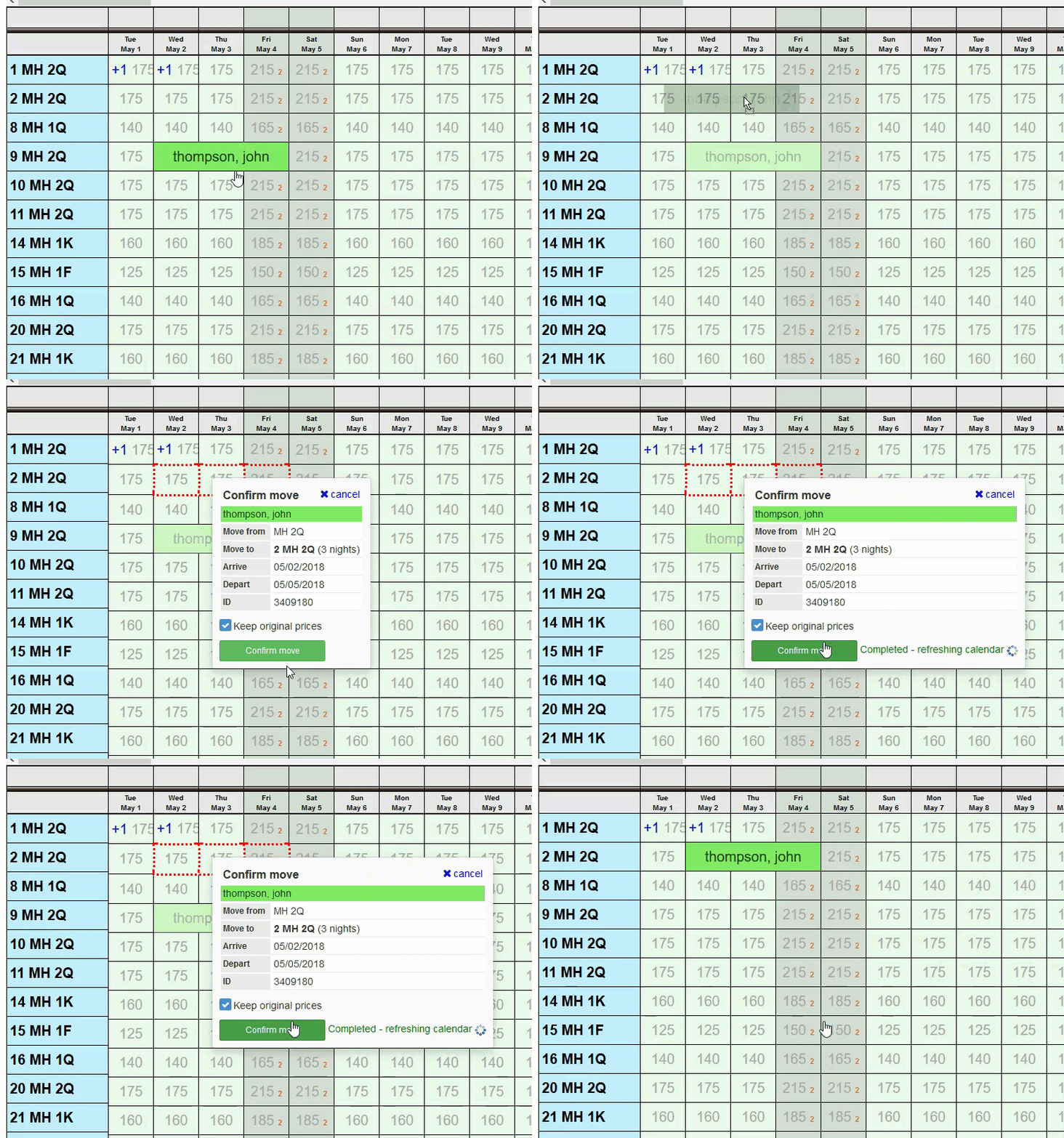
Now, when moving a reservation to a different Room/Unit, we have an option whether or not to keep the rates of the originally assigned Room/Unit. By default this box is NOT checked, but if you want to use the original rates check the box before clicking Change. If the box is not checked, then we will pull the rates for the new Room/Unit from the rate plan.

Monday, January 28, 2013

Captcha Option for Gift Certificates

If you find you are receiving spam through your Gift Certificate purchase page, there is now an option to require users to enter a captcha code. We made this an option, because if spam is not a problem on your page, then there is no reason to make your buyers go through this extra step.

Enable this in the Gift Certificates settings page:


Once enabled, buyers will need to enter the captcha code:

Saturday, January 26, 2013

Color Code Units; Search by Room/Unit

It is now possible to set the color of the Room/Unit name on the internal calendar. This can be useful for grouping units into different properties, especially for users that are managing many properties with ReservationKey.

The setting can be made at any level - Property/Location or Room/Unit or Fraction. Setting the color at the more specific level overrides a color set at a more general level. For example, a color for a specific fraction will override any color set at the Room/Unit or Property/Location level. If you want all units that are part of the same Property to use the same color, then just set the color at the Property/Location level and all units that are part of that Property/Location will inherit that color setting. Or, overrride the color by setting different colors for specific Rooms/Units.

These settings are in the edit screen. Such, as is seen here, in the Properties/Location screen:


Setting the colors, has this affect on the internal calendar:


And, unrelated to this, you can now search by specific unit, in the Reservations tab:

Monday, January 21, 2013

New Features for Property Managers

For property managers using ReservationKey, it is now easier to create owner reports. The first step is to enter all your owners, in the Settings Tab, Lists.


Next, going to the Properties Tab, and edit each unit, under Rooms/Units. At the bottom, there is a new section for linking the owner to the unit, and for setting your standard commission amount.


In the Reports section, open the Owner's Report. There you can select which columns to show, which fees to include expenses on, whether to include any expense categories, and a few more settings. The commission amount will be based on what you set in the rooms/unit settings. NOTE: the commission can be overriden on a reservation by reservation basis, by adding expenses. Any data saved in the expenses section will replace the standard commission, on this report.


To email the report to the owner, once you have all the settings as you like them, click the Email button. From the email page you can create and save email templates for use in sending the report. You also can preview the report before sending it.

New Option for Displaying Cancellation Policy

In response to requests from users, we have added an option to set whether your cancellation policy should display the full text on the reservation page, instead of being displayed in a popup box. It seems that the credit card companies have become more strict about where the cancellation policy needs to be displayed. Unless it is showing right on the page, immediately above the Make Reservation button, there is a greater chance of the credit card company siding with the buyer in the case of a challenge regarding a charge due to a cancellation.

To set this, first check the box in the Website Tab, Reservation Page settings:


Once this is checked, the full text of the cancellation policy will display on the reservation page.


If you opt to display the full text on the page, then we also will be showing the checkbox for your user to check to indicate their agreement. We hope this helps with fighting back against people that claim not to know about your cancellation policy.

Monday, January 7, 2013

New Internal Availability Search Feature

Now there is a way to search availability internally, for a date range, and select unit(s) from those that are available. In some situations, this may be faster than selecting dates from the Availability Calendar.

Just click the [S] in the Availability Tab.


This brings up the search box, where the arrive/depart dates can be entered, and it is possible to filter by a specific property (only shows if you are managing more than one property in ReservationKey).


After clicking search, the available units will be displayed. Select at least one unit (or select more to add multiple units to one reservation) and then the Add Reservation button will appear. Click it, to continue to the Reservation Details screen to complete the reservation.


One more new feature...

It is now possible to filter by Reservation Status, in the Reservations Tab. Click Show Advanced Search to open the advanced settings.
